





Last Updated: March 4, 2026
The Messages module is an SMS messenger with additional features.
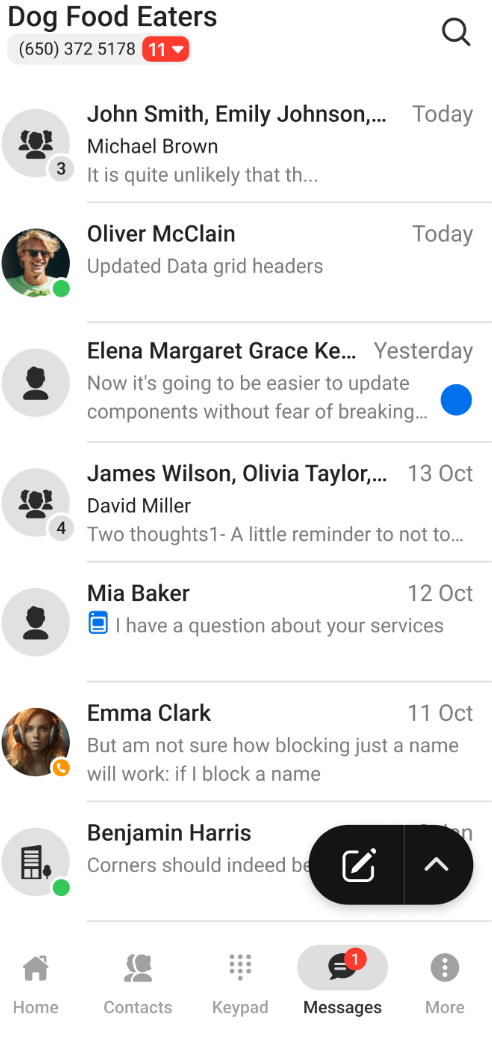
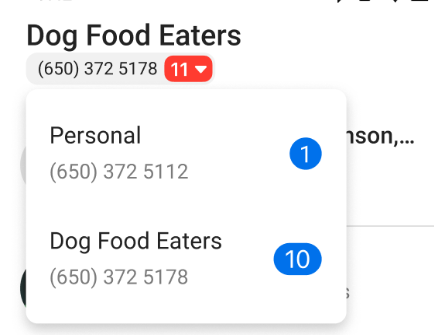
By default, you’ll see a list of all your ongoing chats when you open the module. To view all chats with new activity, tap the down arrow beside your phone number:
To start a new conversation, tap  to open a menu that contains two options messaging options:
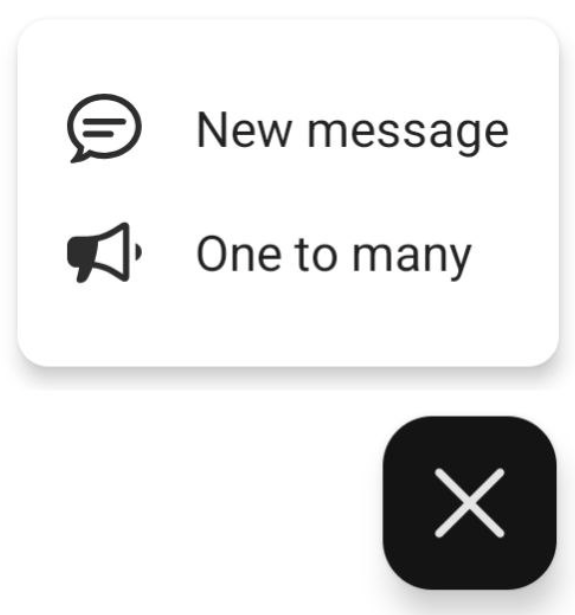
- New message allows you to create group SMS chats with up to 10 members. You can use message templates and attach pictures (MMS).
- One to many lets you mass message up to 25 contacts. You can apply message templates but cannot attach pictures (SMS only). This type of messaging does not create a group conversation; instead, it creates the same message multiple times to send once to each included contact.
The chat interface is similar to other popular messenger apps:
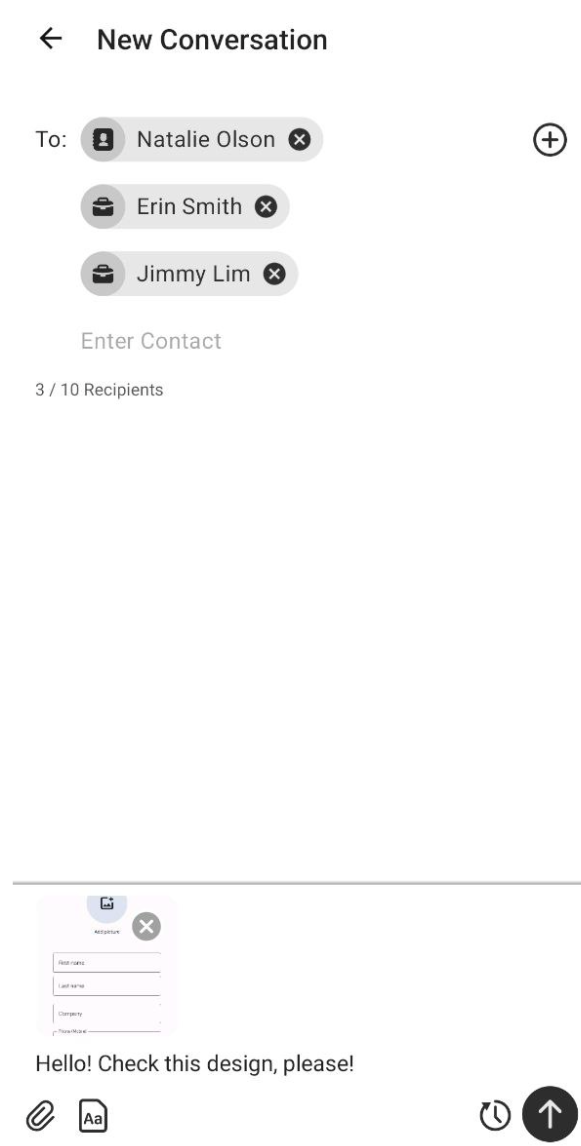
- The To: field lists the contacts included in the chat. When you’re starting a new chat, you can use the + button to select one or more contacts from your contact lists. Alternatively, you can manually enter a number in the Enter Contact field.
- Use the Message line to type your message text.
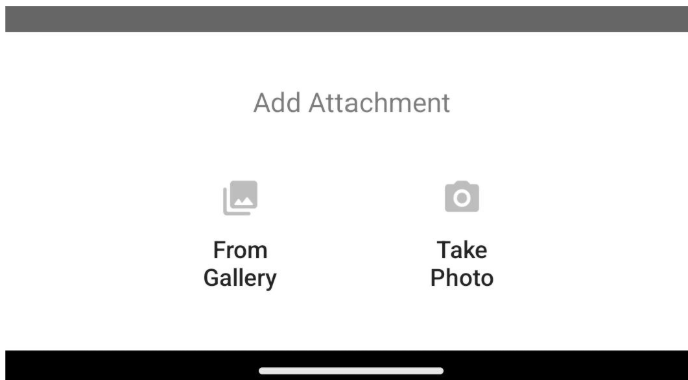
- The
 button lets you attach images, either from your device’s gallery or by taking a photo:
- The template button lets you access pre-configured message templates:
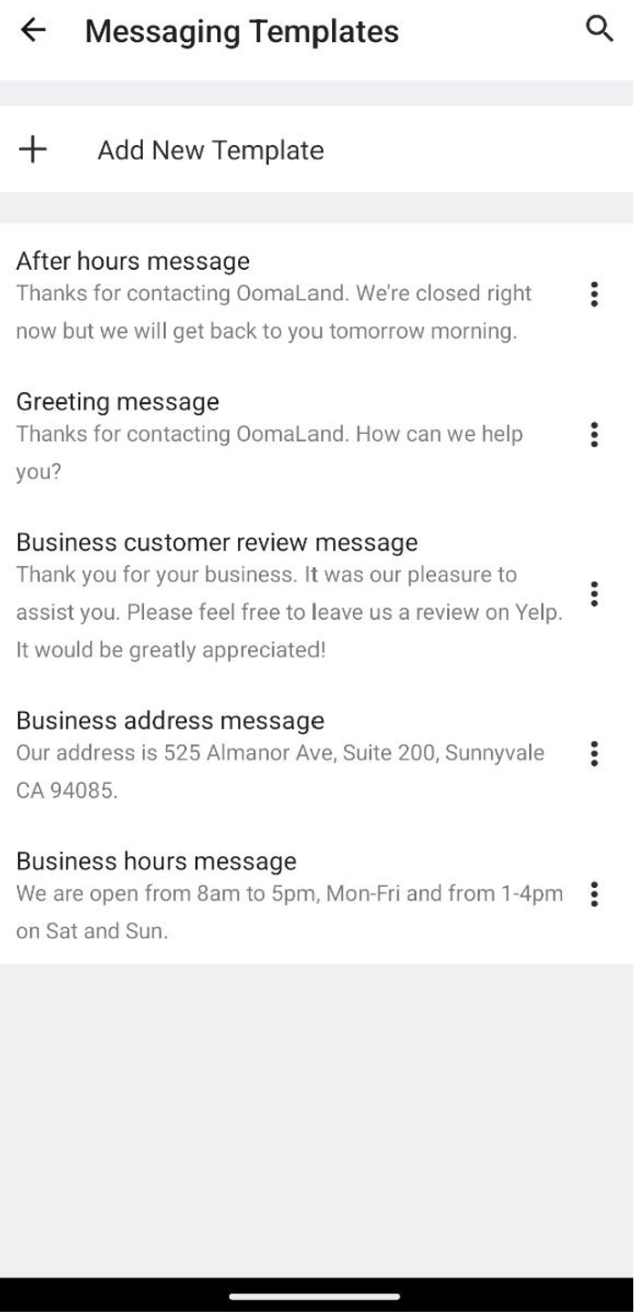
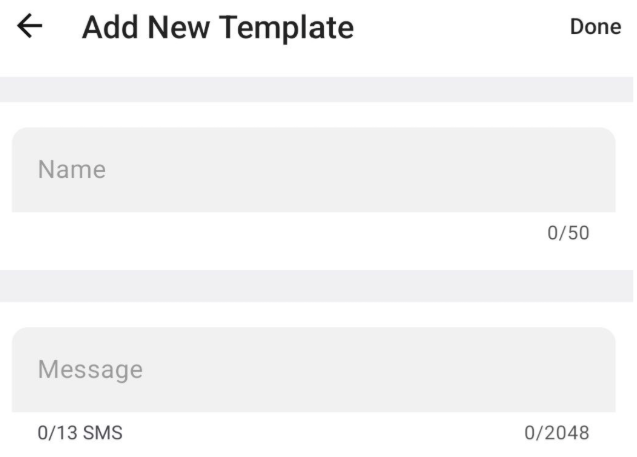
Use the + Add New Template option to create a new template:
- The
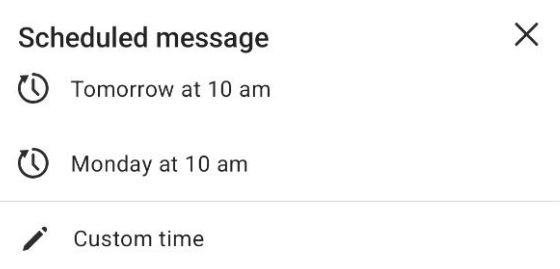
 option lets you defer sending the message until a later time. You can choose between two preset times or set your own custom time to send the message.
- Use
 to send the message as usual.