





Last Updated: June 29, 2026
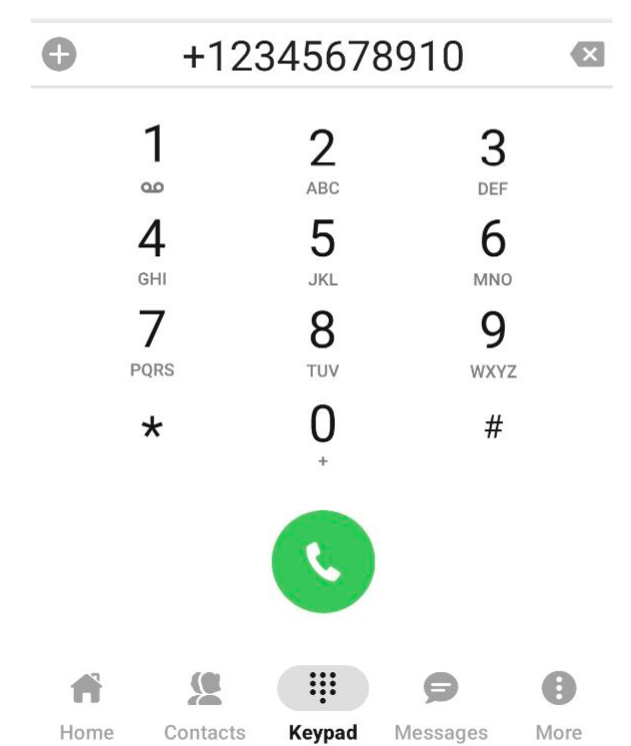
The Keypad is a fundamental feature of any phone app, enabling you to make calls just like you would with your cell phone’s default dialer:
There are several actions you can perform during an active call:
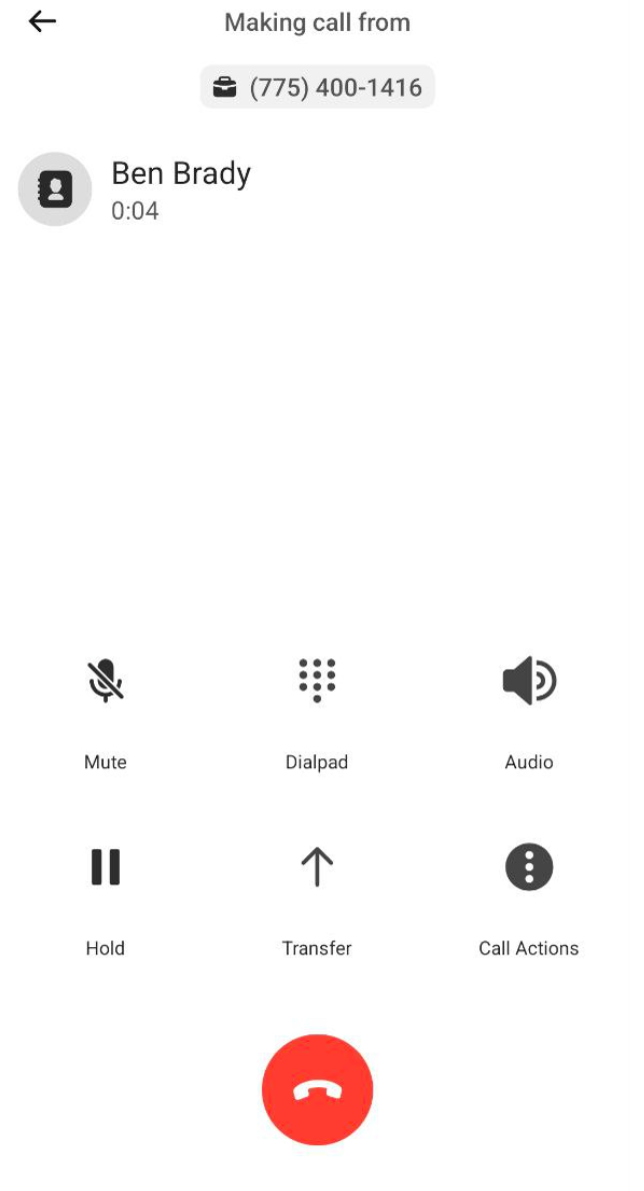
- Mute (
 ) toggles your microphone on or off during a call.
 - Dialpad (
 ) opens the keypad, allowing you to enter PINs or other digits for interactive voice response (IVR) systems.
 - Audio (
 ) activates your phone’s speaker for hands-free listening.
 - Hold (
 ) places the call on hold. Press again to resume.
 - Transfer (
 ) allows you to transfer the call to another recipient. This button opens a menu where you can choose the transfer type: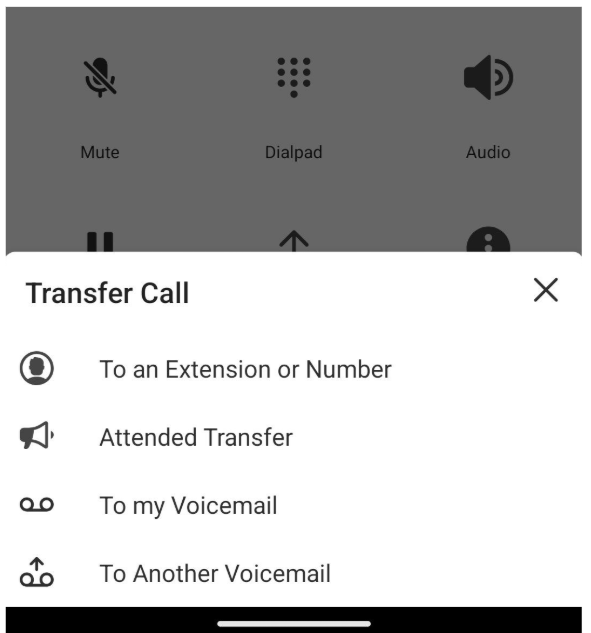
- To an Extension or Number performs a direct, or blind, transfer that immediately redirects the call to a selected contact.
- Attended Transfer lets you transfer the ongoing call to another person. Before the transfer takes place, you can speak with the intended recipient to confirm their availability and willingness to accept the call. Meanwhile, the transferred call will be placed on hold.
- To my Voicemail sends the call directly to your voicemail.
- To Another Voicemail transfers the call to another internal contact’s voicemail box.
- Call actions (
 ) opens a menu with additional options: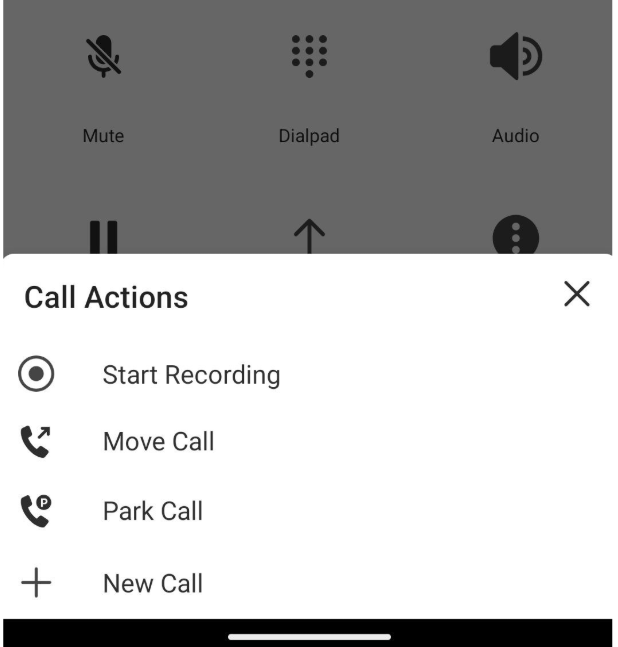
- Start Recording begins recording the call
 . A new button that shows the recording duration and a Stop option will appear in the calling window: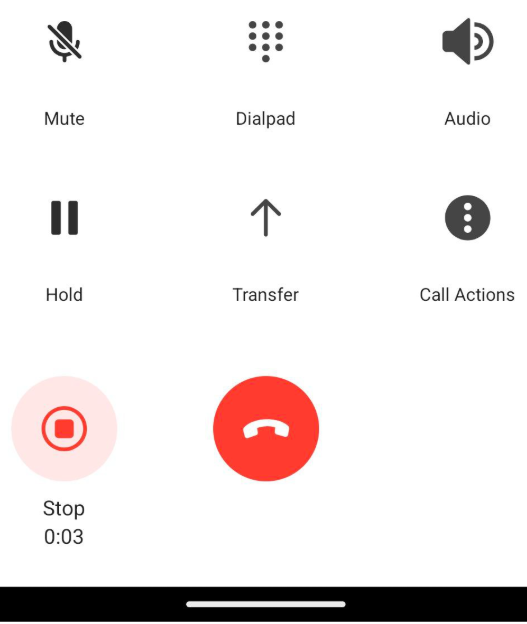
- Move Call lets you seamlessly transfer an active call from one device to another within your extension, ensuring uninterrupted communication.
- Park Call places the call in a Parking Spot. You will be prompted to select a spot from a provided list.
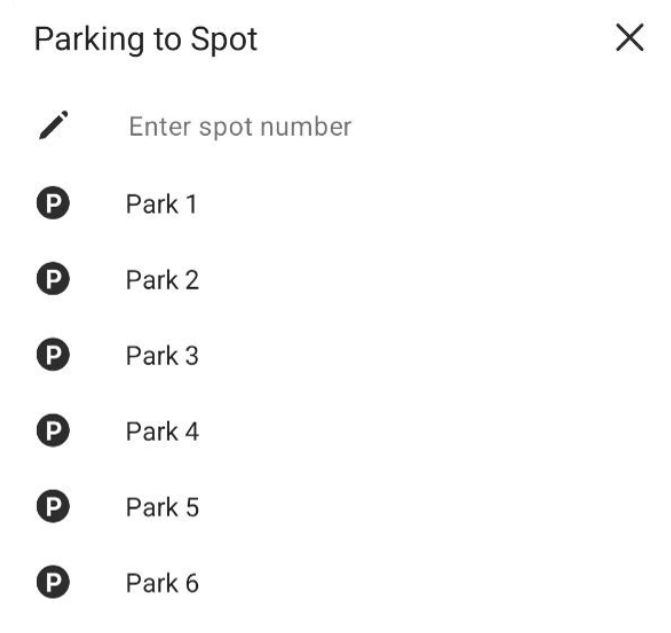
To retrieve a parked call, open the Keypad, enter *41 followed by the parking spot number of the desired call, and then tap Dial.
- New Call allows you to start a call with another contact while automatically putting the first call on hold.
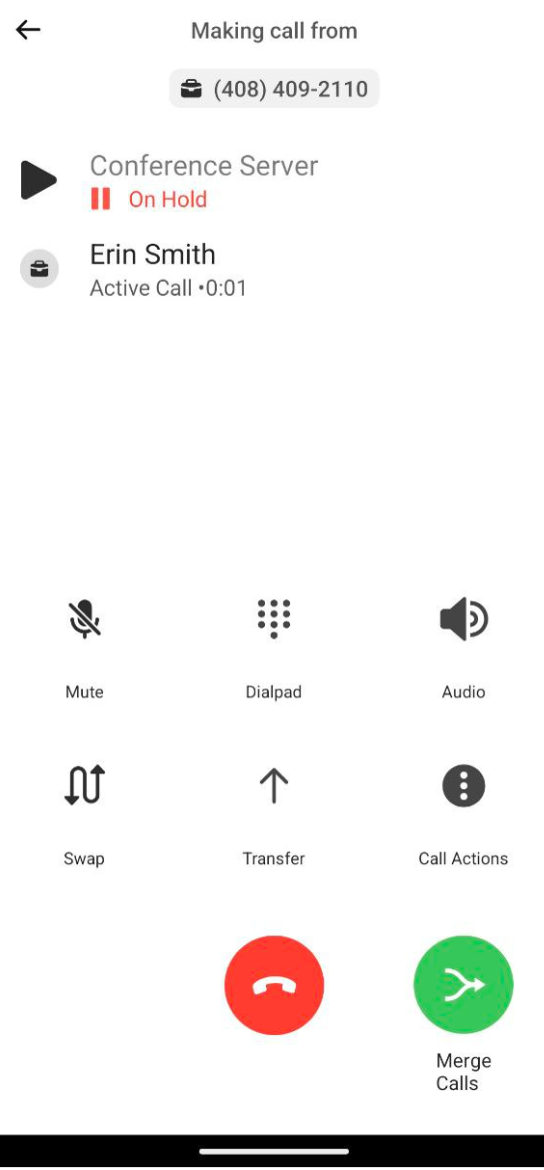
Two additional buttons will appear:
- Merge Calls allows you to merge the calls.
- Swap lets you switch between the two active calls.
- Start Recording begins recording the call