 Introducing
  ,
, 
Support for 

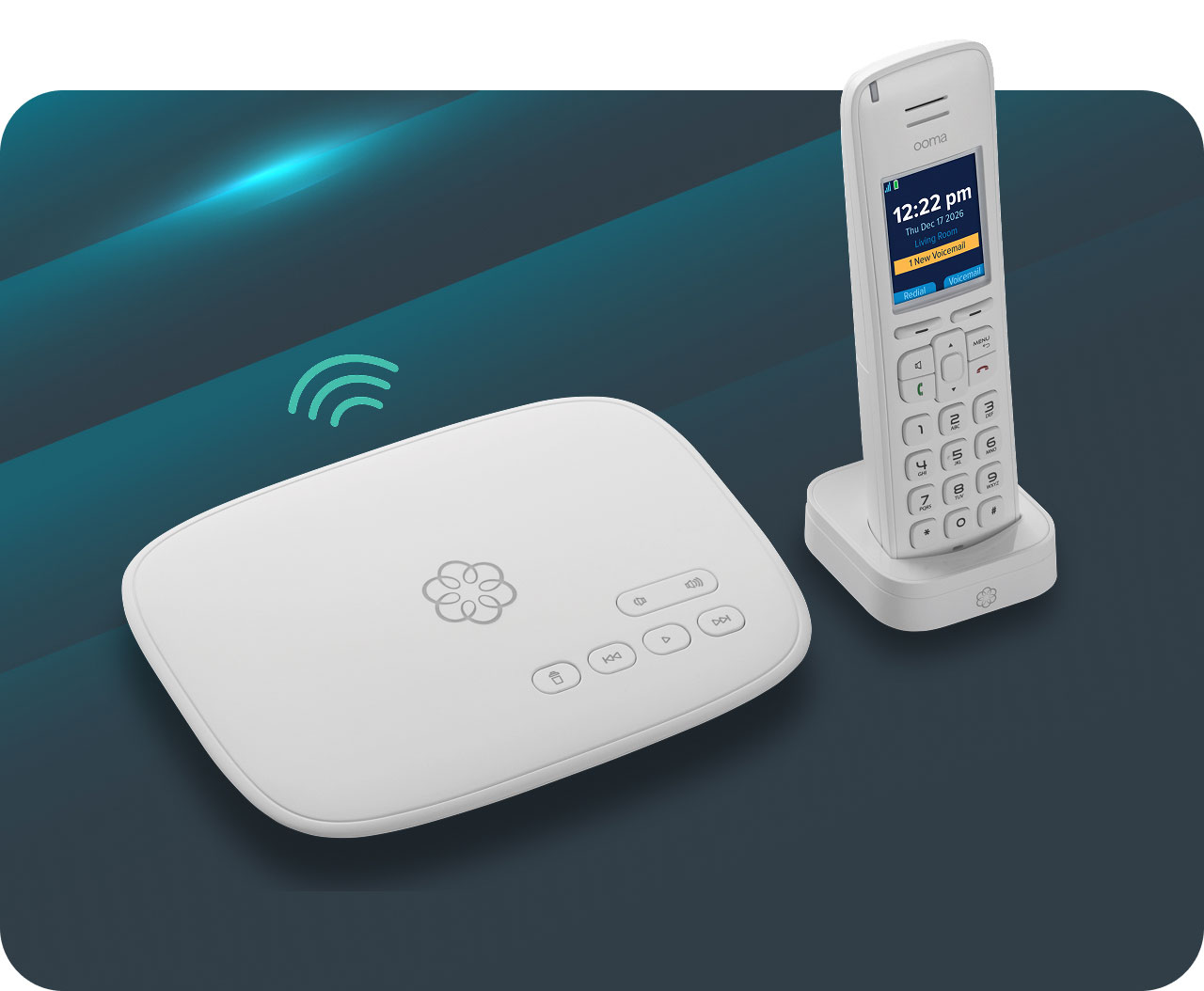
Get help with your StarDial Base Station and HD3 Handset. Find feature overviews, step-by-step instructions, and answers to common questions.

Need help with your StarDial devices or features? Call 877-621-0515.
Manage account features in My Ooma.

Check voicemail
and call logs

Manage Do Not Disturb settings
and calling preferences

Purchase
additional services
Explore StarDial features.

Set up your voicemail.
Pick up the phone and press the Play key on the Base Station. The system will help you get set up.

Transfer your phone number.
Port your existing number to Ooma for a one-time fee of $39.99.

Explore Ooma Premier.
Your Base Station comes with a 60-day free trial of Premier, then just pay $9.99/month.

Ooma Premier Features
Your StarDial Base Station includes a free trial of Ooma Premier, unlocking over 25 premium calling features so you can make the most of your service.
Continue Premier service for just $9.99/month, plus taxes and fees.
Learn MorePress the Flash key on your handset to put the original call on hold and get a new dial tone. Press Flash again to connect both calls.
Forward your voicemail to email so you can listen from your smartphone or computer. To set this up, go to: my.ooma.com/voicemail
Take your home calls with you. Forward calls to your cell phone at my.ooma.com/calling.
Take advantage of call blocking and trusted caller settings to choose who can reach you and who can’t: my.ooma.com/call_blocking
Don’t recognize the caller’s number? Enhanced Caller-ID will look up the name from a national database to give you the information you need.
Listen in as callers leave a voicemail. The message will be played through the Base Station’s speaker. Pick up the phone if you decide to take the call after all.
Update your Ooma account and make or receive calls on your iOS or Android cell phone with the Ooma Home Phone mobile app: my.ooma.com/mobile
Turn on Do Not Disturb by pressing and holding the button on the Base Station or by dialing * 7 8 on the phone. Repeat this to turn Do Not Disturb off.
If you prefer scheduled quiet time, visit my.ooma.com to control your call availability.
Additional StarDial feature support.
Unboxing Ooma StarDial.
Double check the contents of your package against the included Quick Start Guides to make sure you have everything you need before you get started.
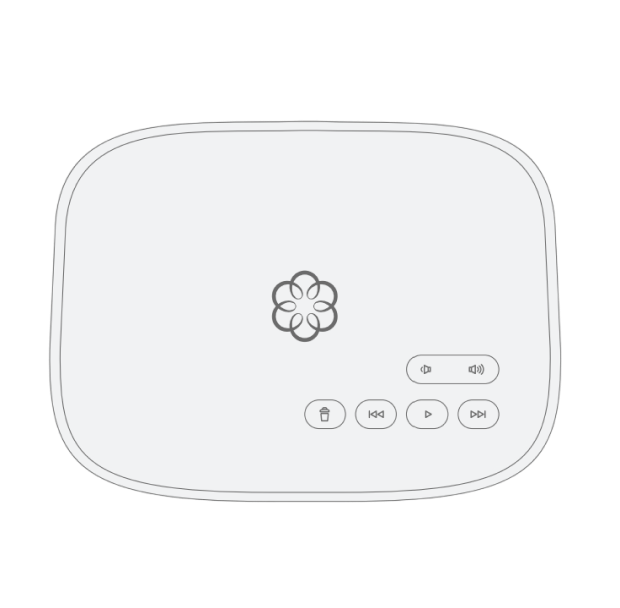

Ooma StarDial
Base Station
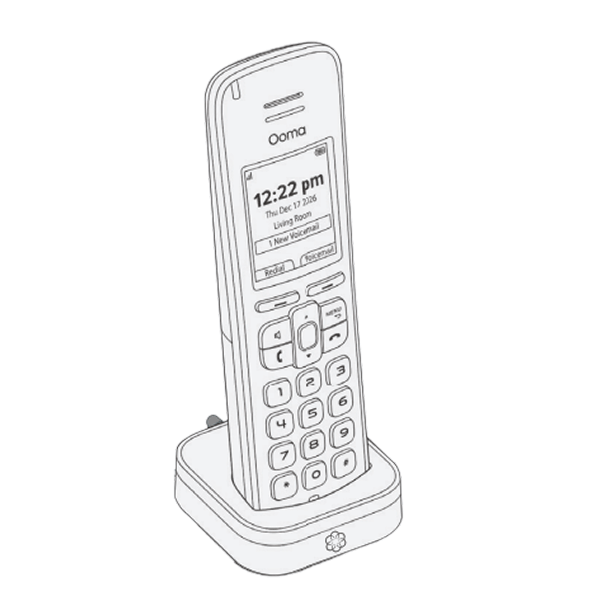
HD3 Handset and
Charging Cradle
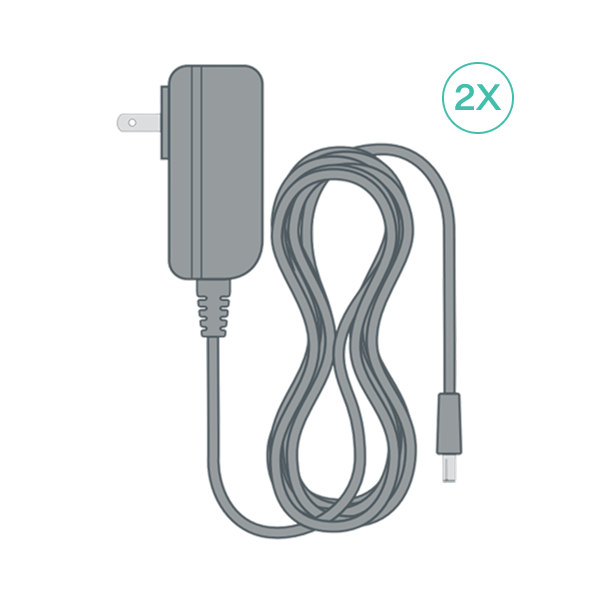
AC Adapter for the
Base Station and Handset
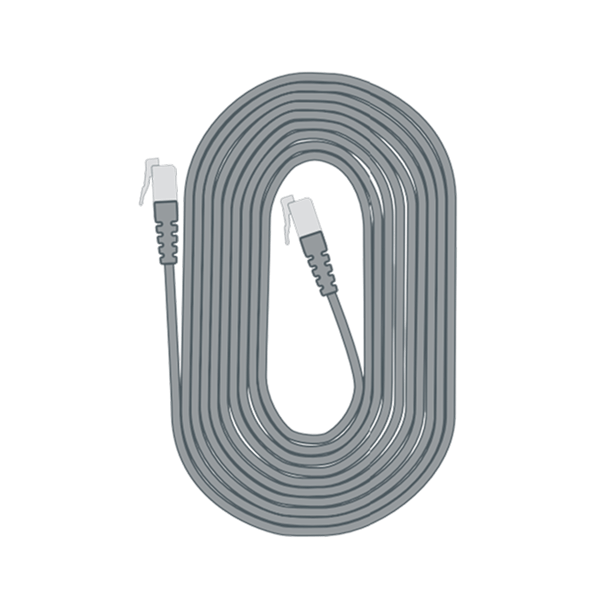
Ethernet Cable
StarDial
Activation
Get the Ooma Setup app.
The easiest way to get started is with your iPhone or Android phone. Use the QR code included in the Quick Start Guide to download the Ooma Setup App or visit your phone’s app store and search for Ooma Setup.
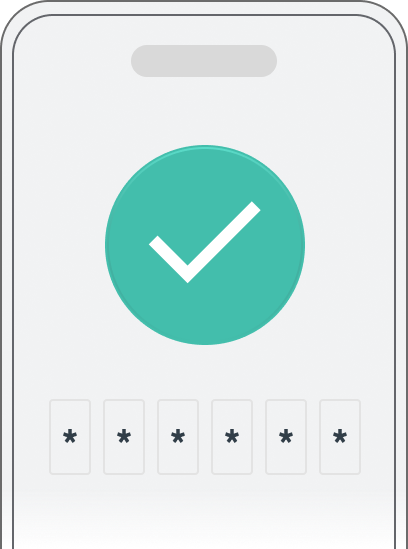
Activate your account.
The Ooma Setup App will guide you through activating your account. You’ll need to provide your 911 address and choose a phone number.
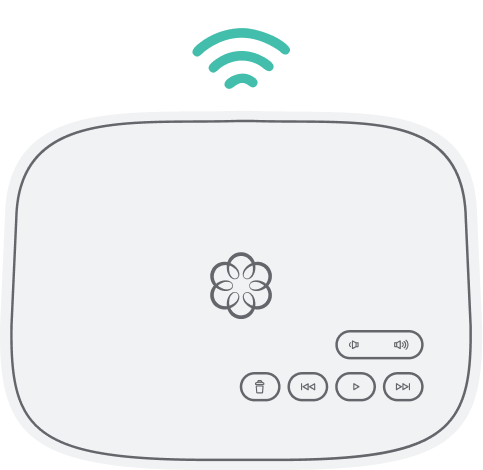
Connect your StarDial Base Station using Wi-Fi.
The Ooma Setup App will guide you through connecting your StarDial Base Station to the internet in one of two ways: Wi-Fi OR hardwired ethernet.
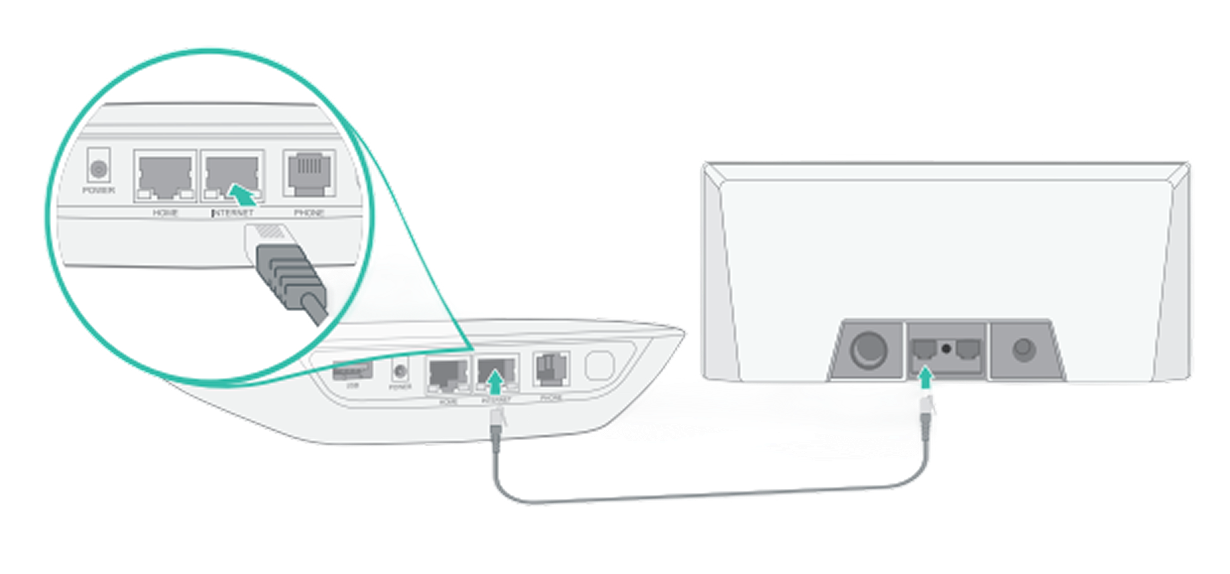
Optional:
If you can’t or don’t want to connect your Base Station to your Wi-Fi network, you can use a hardwired connection instead.
Insert one end of the included Ethernet cable into the INTERNET port on the back of the Base Station and connect the cable’s other end to an open port on your router.
Note: StarDial works with any router and any internet service provider.
Plug in the Base Station.
Connect the included AC adapter into the POWER port. The Ooma logo will blink red for a few minutes. When the light turns blue, the Base Station is ready.
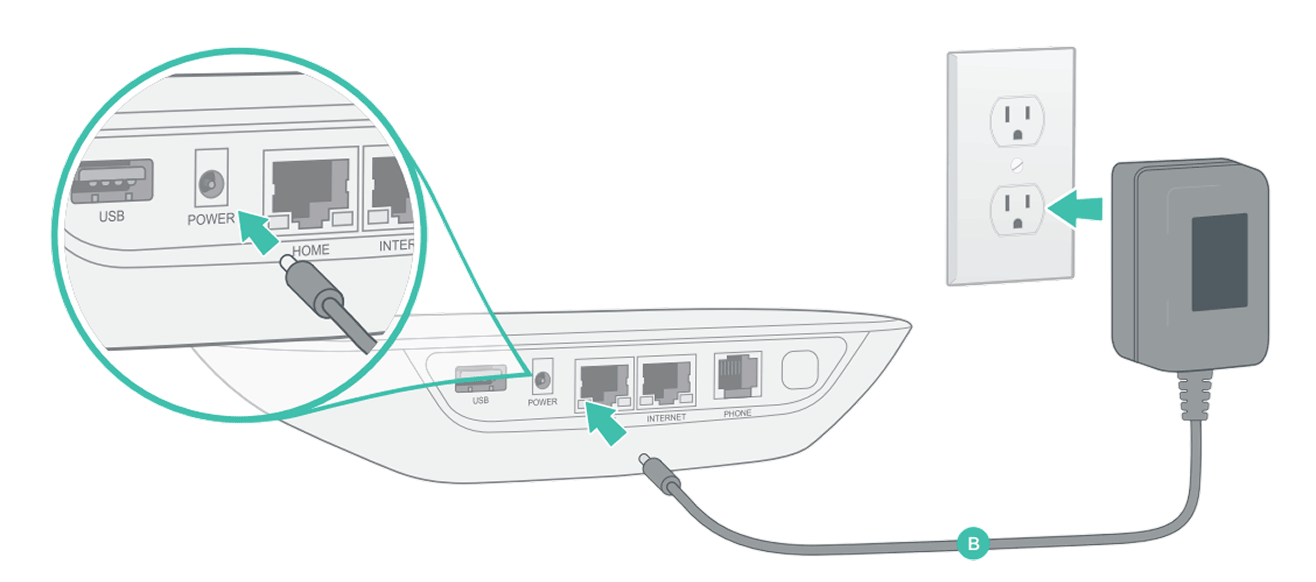
If your Base Station needs a software upgrade, the light on top of the device will blink purple while it is downloading the newest version. This may take 5-10 minutes.
Do not unplug the Base Station while it is upgrading. It will automatically reboot after the upgrade is done.
Connect your handset.
Plug the AC adapter into a power outlet and connect it to the charging cradle. Then press and hold the Page key on the Base Station. When prompted, press YES on the handset to complete pairing.
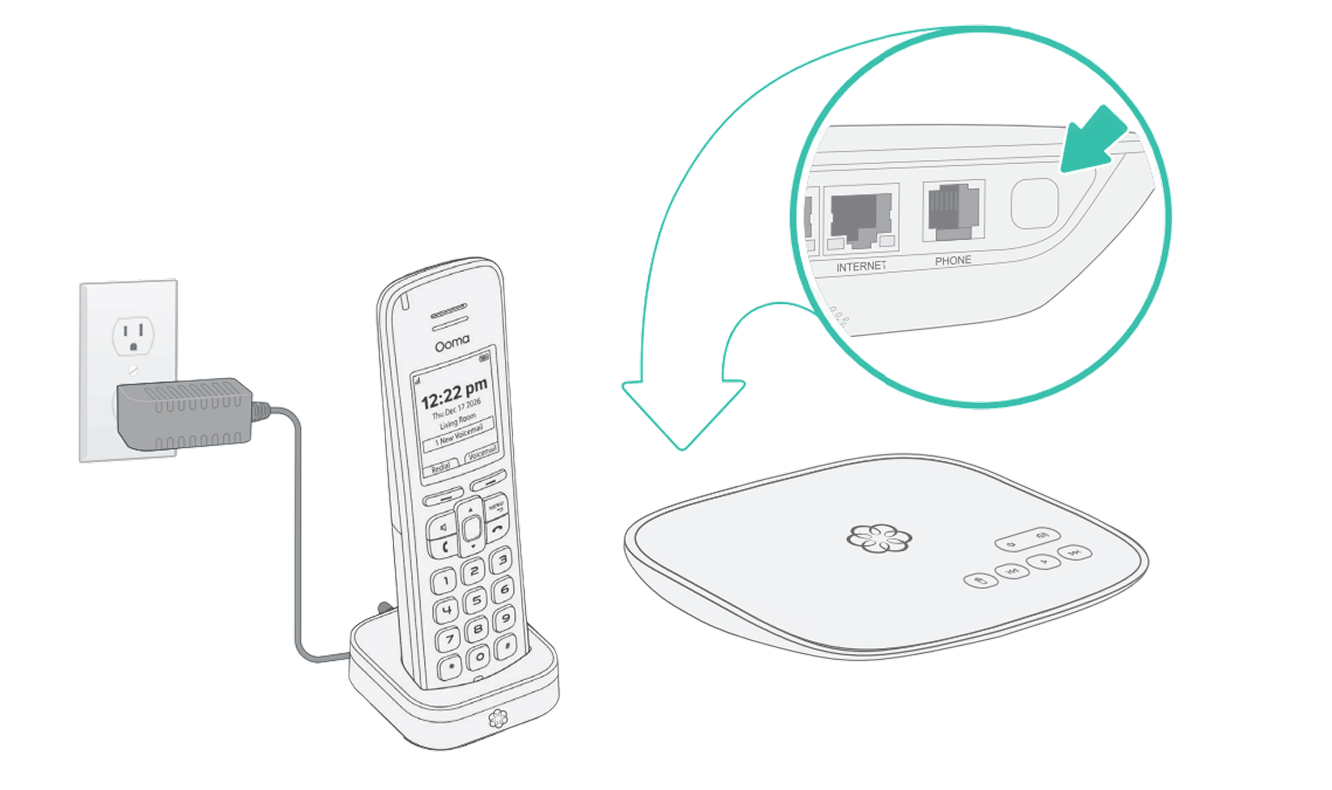
Your setup is complete!
The StarDial Base Station is ready to use when the light on top is a solid blue. You should hear a dial tone when you pick up the phone.